

Prerequisites
Before you start with this tutorial, make sure you have the following tool installed on your machine:- Node.js v16 or later
Setting up Next.js App
First, create a directory for the project and then initialize a Next.js app using the following command in your terminal:@livepeer/react , @bundlr-network/client ,
filereader-stream libraries which we will use to integrate Livepeer, Bundlr
Network and stream the file respectively:
Adding TailwindCSS
Tailwind CSS is a utility-first CSS framework that enables you to rapidly build user interfaces. We will use it to style our app. First, we need to install thetailwindcss, postcss, and autoprefixerdependencies. These dependencies are
necessary for TailwindCSS to work properly in a Next.js app.
Run the following command to install them:
tailwind.config.js and
postcss.config.js. These files contain the configuration for Tailwind CSS and
PostCSS, respectively. Next, open the tailwind.config.js file in code editor
of your choice and replace its contents with the following code:
./styles/globals.css
file.
pages/index.js file, with below code.
npm run dev to start the next.js app and you should see
a similar page.
Integrating Livepeer
Livepeer is a decentralized video platform that allows users to upload, transcode, and serve video content. The Livepeer React SDK provides a set of ready-to-use hooks that make it easy to integrate Livepeer into a project. To get started, navigate to https://livepeer.studio/register and create a new account on Livepeer Studio. This will give you access to your Livepeer dashboard, where you can manage your account and access your API keys. Once you have created an account, in the dashboard, click on the Developers on the sidebar.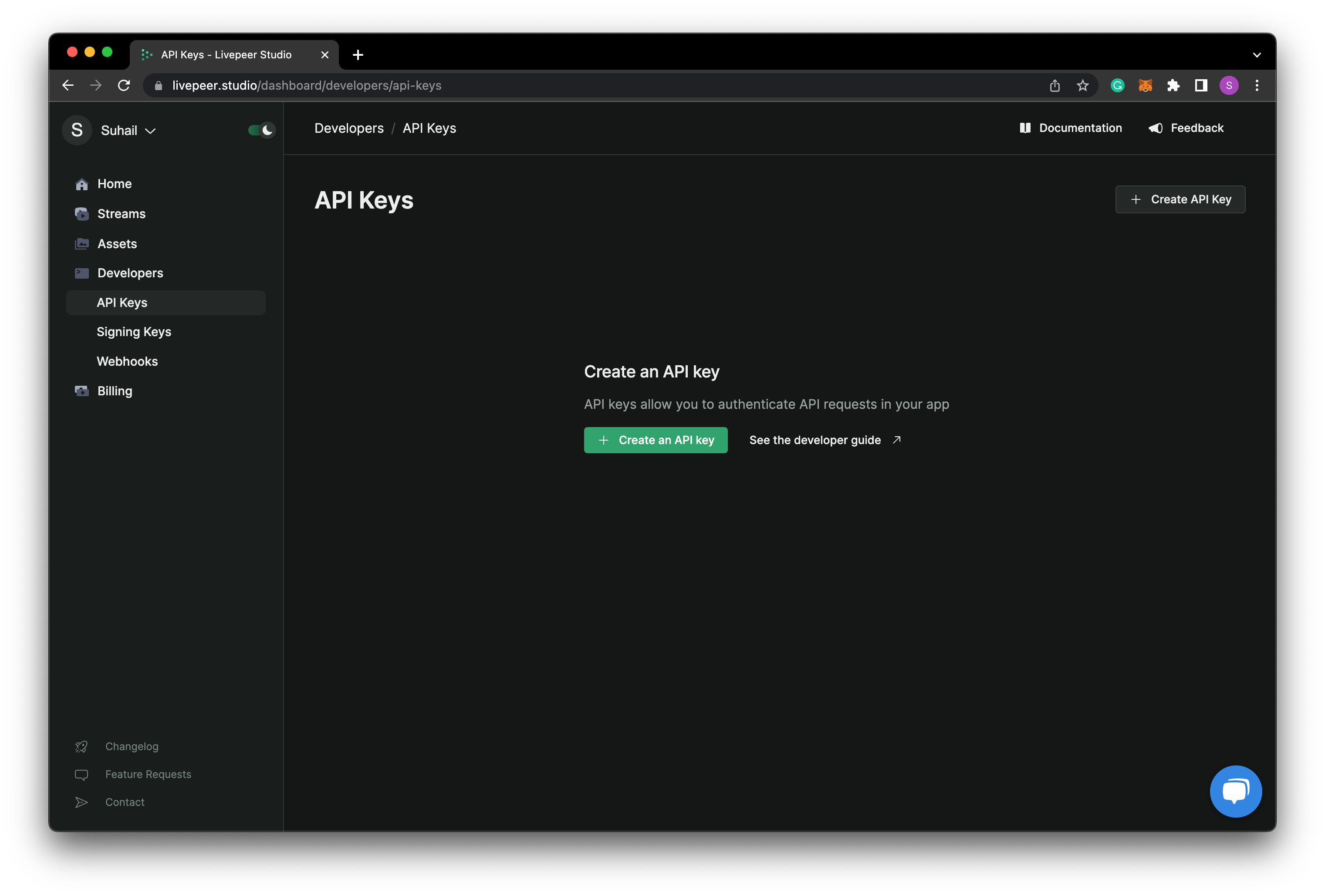
clientin
the root directory, and add the following code to livepeer.js
YOUR_API_KEY with the key which you just copied from
the Livepeer dashboard. And also replace the code inside of _app.js in the
page directory with the below code.
Uploading Videos To Arweave
We will be first using Bundlr Network to upload videos to Arweave and then playback the transcoded version using Livepeer’s Player. The Livepeer player automatically triggers video transcoding to ensure smooth playback. This can be useful for ensuring that your videos are of high quality and that they are accessible to a wide range of viewers, regardless of their device or connection speed. Insideclient directory, create a new file named bundlr.js and add the below
code inside of it.
index.js file in the pages directory, create two states,
one for the video file and the other for the Arweave ID:
uploadVideo function when clicked.
Add the following function to handle the uploading of the video: